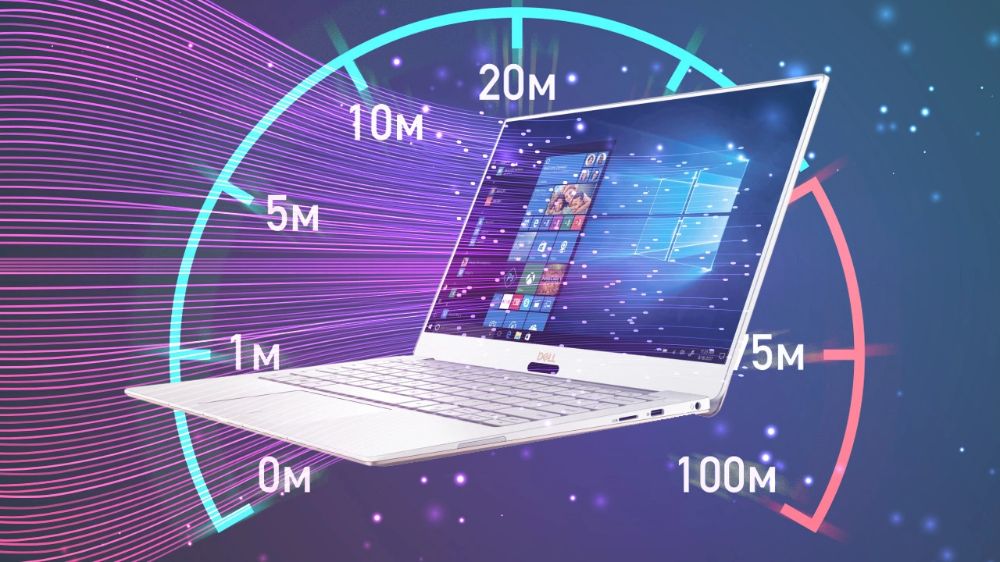

Is your laptop taking forever to boot up? Or does it lag while switching between Chrome and other apps? Over time, Windows laptops tend to slow down due to system clutter, unnecessary background apps, and outdated drivers.
As a tech-savvy user, you don’t need to buy a new laptop. You just need to optimize the one you have. Here are 7 pro steps to make your Windows laptop feel like new again.
1.Disable Startup Apps
The biggest reason for a slow boot-up is too many apps trying to start at the same time.
- The Fix: Right-click the Start button and open Task Manager. Go to the Startup apps tab. Disable everything you don’t need immediately (like Spotify, Cortana, or OneDrive).
2. Clean Up Temporary Files
Windows stores “temp” files for every task it performs. These files can take up gigabytes of space and slow down the system.
- The Fix: Press
Win + R, type%temp%, and hit Enter. Select all files and delete them. Don’t worry, these are just temporary logs.
3.Use “Storage Sense” (The Modern Way)
Windows 10 and 11 have a built-in tool that automatically cleans up old files and empties the Recycle Bin.
- The Fix: Go to Settings > System > Storage and toggle on Storage Sense.
4.Optimize Power Options
Windows often limits performance to save battery. If you are plugged in, you should use the maximum power.
- The Fix: Go to Control Panel > Power Options and select High Performance (or “Best Performance” in Windows 11 settings).
5.Check for Windows & Driver Updates
Old drivers can cause hardware conflicts that slow down your laptop.
- The Fix: Go to Settings > Windows Update and check for updates. Also, check “Optional Updates” for latest driver releases.
6.Adjust Visual Effects
Windows animations look cool, but they use up RAM and GPU resources.
- The Fix: Search for “Adjust the appearance and performance of Windows” in the Start menu. Select “Adjust for best performance” to disable animations.
7.Upgrade to an SSD (The Ultimate Fix)
f you have tried everything and your laptop is still slow, the problem is likely your Hard Drive (HDD).
- The Fix: Swap your old HDD with a SATA or NVMe SSD. This is the single best upgrade you can give your laptop in 2026.